Automating ChatGPT Access to Website Data via Google Drive
A technical detective story of 201 stray files, a broken Git and the architecture that helped find the right solution
CASE AT A GLANCE
- Year 2026
- Region Ukraine
- Services Automating the transfer of site structure for reading
- Tools Task Scheduler, PowerShell, Google Drive
- Result Task Solution
CLIENT
FROM

A ChatGPT library cluttered with outdated ((2), (3), (6) etc) and unnecessary versions of analysis files forced me to clean it up, leading to a strict decision never to let that happen again. Back then, I couldn't have imagined that I would soon have to investigate the appearance of completely different files
- Install the Google Drive app on your computer.
- Synchronize the local project folder with cloud storage.
- Grant read-only access to a folder from Google account #1 to Google account #2.
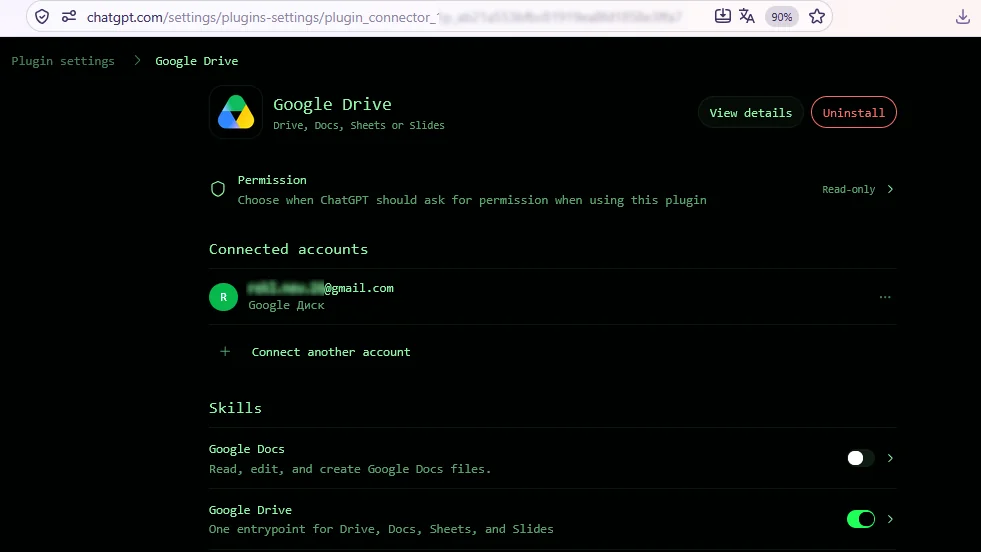
- Install the Google Drive plugin in ChatGPT and authorize Google account #2 within it.
With the Google Drive connection available to me, I couldn't restrict ChatGPT's access to a single folder. So I used a separate Google account with read-only access to the project files.
Once implemented, everything worked instantly! All it took was hinting at an error or bug, and the generative system immediately provided answers and solutions without requiring extra explanations or file uploads. It even felt like my colleague (as ChatGPT and I mutually refer to each other) was genuinely, humanly thrilled about it! However, the detective story was only just beginning, and the most interesting part was yet to come.
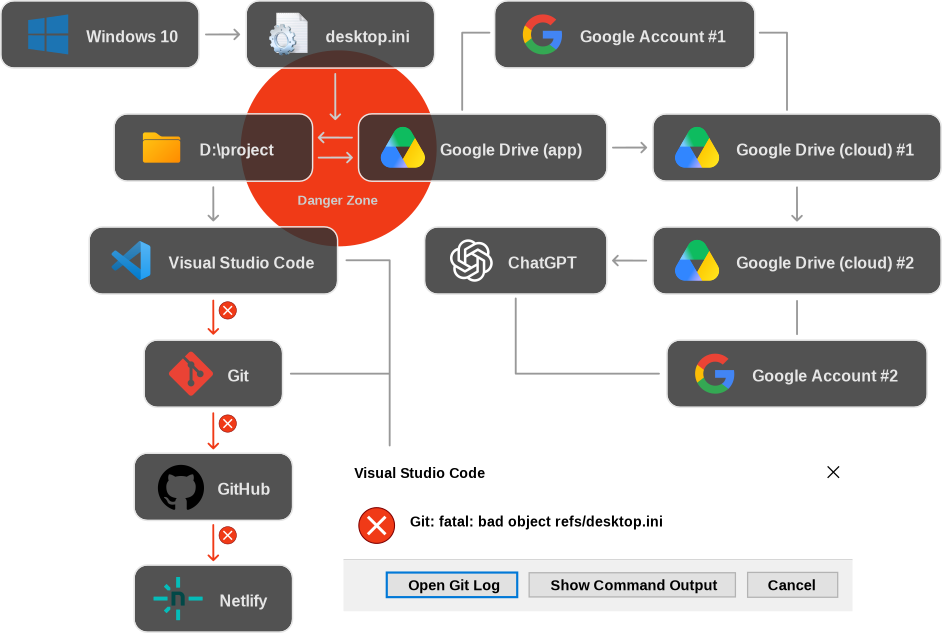
While syncing changes via VS Code, victim in the case Git reported a repository error caused by hidden Windows system configuration files responsible for preserving the visual layout of project folders
When attempting to commit, Git returned the error message: fatal: bad object refs/desktop.ini. Until that day, I had no idea what this file was or what it did simply because I neither needed to know nor cared. However, given how critical local project syncing with the AI was, I had to dive deep into the issue.
desktop.ini was the suspect, but the answer lay in the architecture
The 201 stray files were clues in the investigation. The breakthrough came not from blaming a particular application, but from reconsidering how the tools accessed each other's files.
It looked as if someone had planted a foreign object at a crime scene. And that turned out not to be so far from the truth: an unfamiliar system file had indeed ended up inside .git.
The suspicious element contained [.ShellClassInfo] and an IconResource path pointing to GoogleDriveFS.exe. This connected the folder appearance to Google Drive, but the record alone could not prove which process had written each file: Windows, Google Drive client, or their interaction.
        Git: fatal: bad object refs/desktop.ini
        [.ShellClassInfo]
        IconResource=...\GoogleDriveFS.exe,27
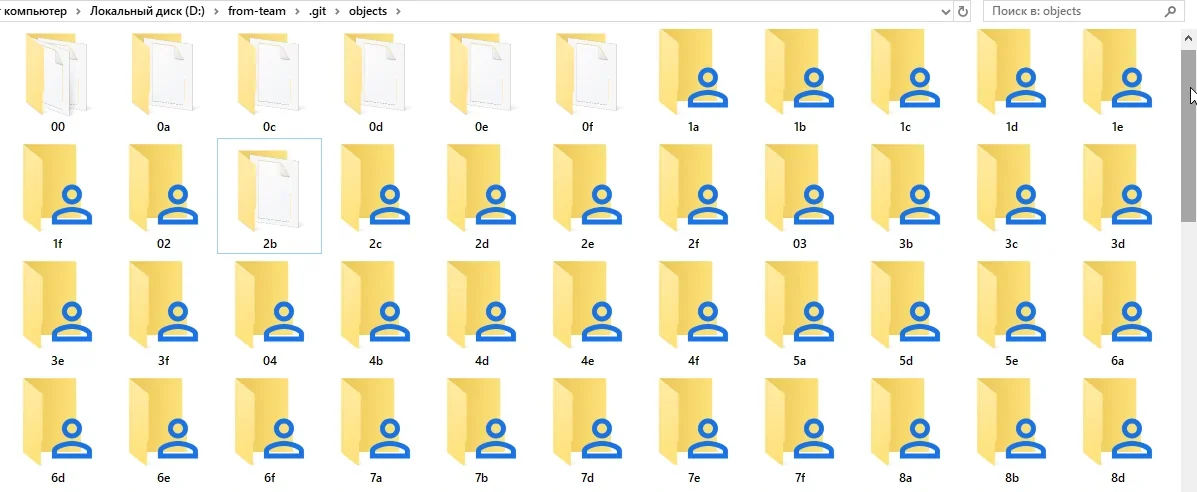
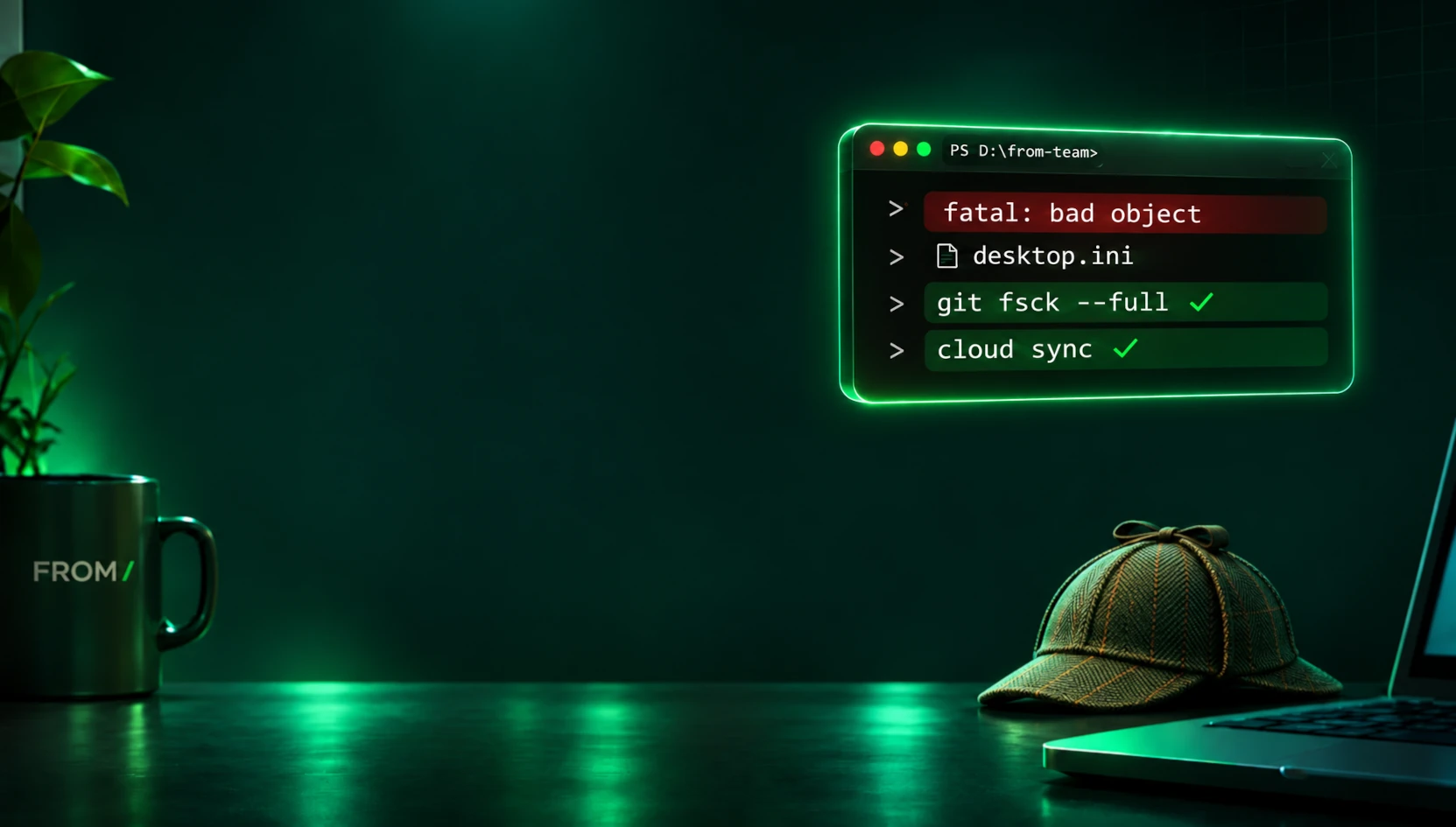
We removed the first stray copy, only for git fsck --full to reveal a long list: more files were scattered across refs, heads, remotes, tags, and object subdirectories. There were 201 of them. At that point, I was no longer eager to find out what the next terminal message might say.
The most important thing in such a situation is to stop and think, rather than starting to delete everything indiscriminately. Before cleaning up, we backed up .git with robocopy outside the synced directory. Only then did we remove files named exactly desktop.ini and inspect the actual repository objects.
        git fsck --full
        # before cleanup: bad sha1 file .../desktop.ini
        # after cleanup:
        Checking objects: 100% (1033/1033), done.
        git status -sb
        ## main...origin/main
After the backup, cleanup, and integrity checks, git fetch origin finally succeeded. A regular git push origin main then published commit d5f3a60. GitHub and Netlify accepted the publication, the deployment went through without errors, and it became clear that the negative consequences of the processes had been overcome.
The decision was made to separate the project into two local directories. The original remained the working Git repository, no longer synced directly with Google Drive, while the second became a dedicated copy for sharing project files. Instead of syncing the source folder with the cloud, we established a controlled, automated one-way transfer from the working directory to its separate counterpart.
The New Architecture
Git → GitHub → Netlify
The cloud copy neither deploys the website nor touches its commit history.Then we wrapped the command in one script instead of manual chores: sync-from.ps1, with source and destination paths, exclusion rules, and an exit-code check. It looked finished - except that running the script manually every time is not really automation. I wanted the computer to do its own share of the work.
        $source = "D:\project"
        $destination = "D:\project-copy"

        robocopy $source $destination /E `
            /XD ".git" ".venv" "__pycache__" ".tmp.drivedownload" ".tmp.driveupload" `
            /XF "desktop.ini" `
            /R:1 /W:1

        if ($LASTEXITCODE -ge 8) {
            Write-Host "Synchronization failed." -ForegroundColor Red
            exit 1
        }

        Write-Host "Cloud copy updated successfully." -ForegroundColor Green
A Windows operating system service for automatically launching programs or scripts, or performing specific actions according to a set schedule or upon the occurrence of certain conditions
Testing the execution via the Run button succeeded. The issue wasn't the script itself—as it turned out, the task had been created in the middle of an active Windows session, so the “At log on” trigger hadn't fired its initial start signal yet.
After restarting the computer, we confirmed that file transfers continued automatically. We were ready to replace the trigger with a daily schedule, but this time a simple test of the hypothesis settled the matter.
The real test was not a synthetic example but the creation of a new website page. Files reached the isolated copy after the Windows logon and were then confirmed in the cloud. A control test proved that subsequent repetitions worked without another reboot.
An important qualification: we verified successful transfers and individual executions, not long-term latency or resilience across every possible Windows or network failure. The system works, but there is still room to improve it.
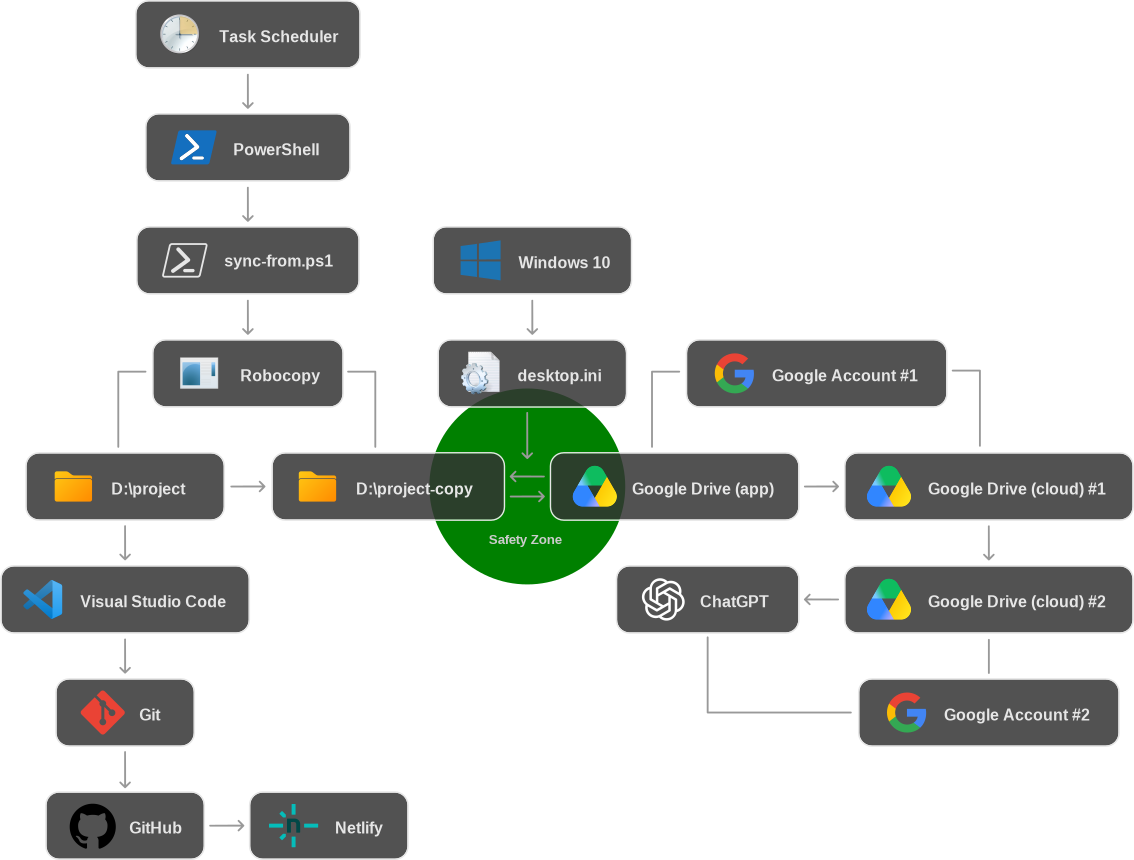
The limitations are explicit. The current robocopy /E setup transfers new and updated items but does not remove files that were deleted from the source. Visibility depends on the scheduled interval and Google Drive itself. Automatic copying is not the same as deployment: GitHub and Netlify only receive changes after an intentional commit and push.
What did I take away from this quest? When a workflow breaks, don't rush to look for software bugs. First understand what each tool actually does, what it controls, and where it has access.
The response was a diplomatic technical review: “Gemini isn't my brother. We're more like colleagues in the same digital industry. His theories are worth hearing out, but every one needs testing. We already have plenty to deal with, plus one uninvited guest - desktop.ini - and it managed to leave 201 traces inside Git.”
The family ties between the two AI systems remained unresolved. The technical mystery, however, was solved - and the unexpected visitor no longer had access to the scene.
The AI assistant helped interpret logs, explain commands, propose architecture options, prepare the PowerShell script, and structure the diagnostics. Some suggestions needed revision as new evidence appeared. There is no reason to hide that part of the process.
I believe that this specific distribution is important: the tool accelerates exploration but does not replace human accountability. I do not claim credit for assistance I received, nor do I hand over decisions whose consequences I would have to fix.
CAST
Act I. The Crime Scene
Act II. The Investigation Team
Act III. Rescue operation
Act IV. The Final Authorities
Any resemblance to actual software and AI systems is entirely intentional.
No desktop.ini files were harmed during this investigation.
THE END